Web Accessibility in 2026: 7 Live Checks for ADA, WCAG, and Usable Privacy UX
The real value in web accessibility shows up when you debug it like a live system. A banner can render perfectly and still leak requests, misfire tags, or drift after the next plugin or theme update.
The useful test for web accessibility is whether the live stack behaves correctly before consent, after consent, and after the next deployment. That is how hidden leaks and timing mistakes show up.
The real test for web accessibility is whether people can complete the same tasks as everyone else across navigation, forms, account screens, mobile layouts, videos, PDFs, consent banners, privacy choices, and support paths.
That framing matches the current official materials. ADA.gov still says the ADA applies to state and local governments and to businesses open to the public, and says public accommodations must provide “full and equal enjoyment” of their goods and services. The Department of Justice also still says it does not have one detailed technical regulation for businesses’ websites, but that standards such as WCAG and the Section 508 Standards provide “helpful guidance”. For state and local governments, the Title II web-accessibility rule adopted in April 2024 uses WCAG 2.1 Level A and AA, but the Department’s April 20, 2026 interim final rule extended those compliance dates to April 26, 2027 for public entities with populations of 50,000 or more and April 26, 2028 for smaller public entities and special district governments. Meanwhile, W3C’s WCAG 2.2 publication history shows the current Recommendation was updated on December 12, 2024.
If you want the adjacent compliance context first, start with these guides to website privacy checker, cookie consent banner, and privacy policy template. This page stays focused on web accessibility as a live product and release discipline, especially on the screens where users make privacy choices, submit forms, and try to reach the same information everyone else gets.
If your team is trying to get web accessibility under control without adding a heavyweight privacy stack, DataShyre can help. DataShyre focuses on data subject request automation that are easier to implement, easier to operate, and easier to trust on a live site. Start with DataShyre’s data subject request automation or book a demo.
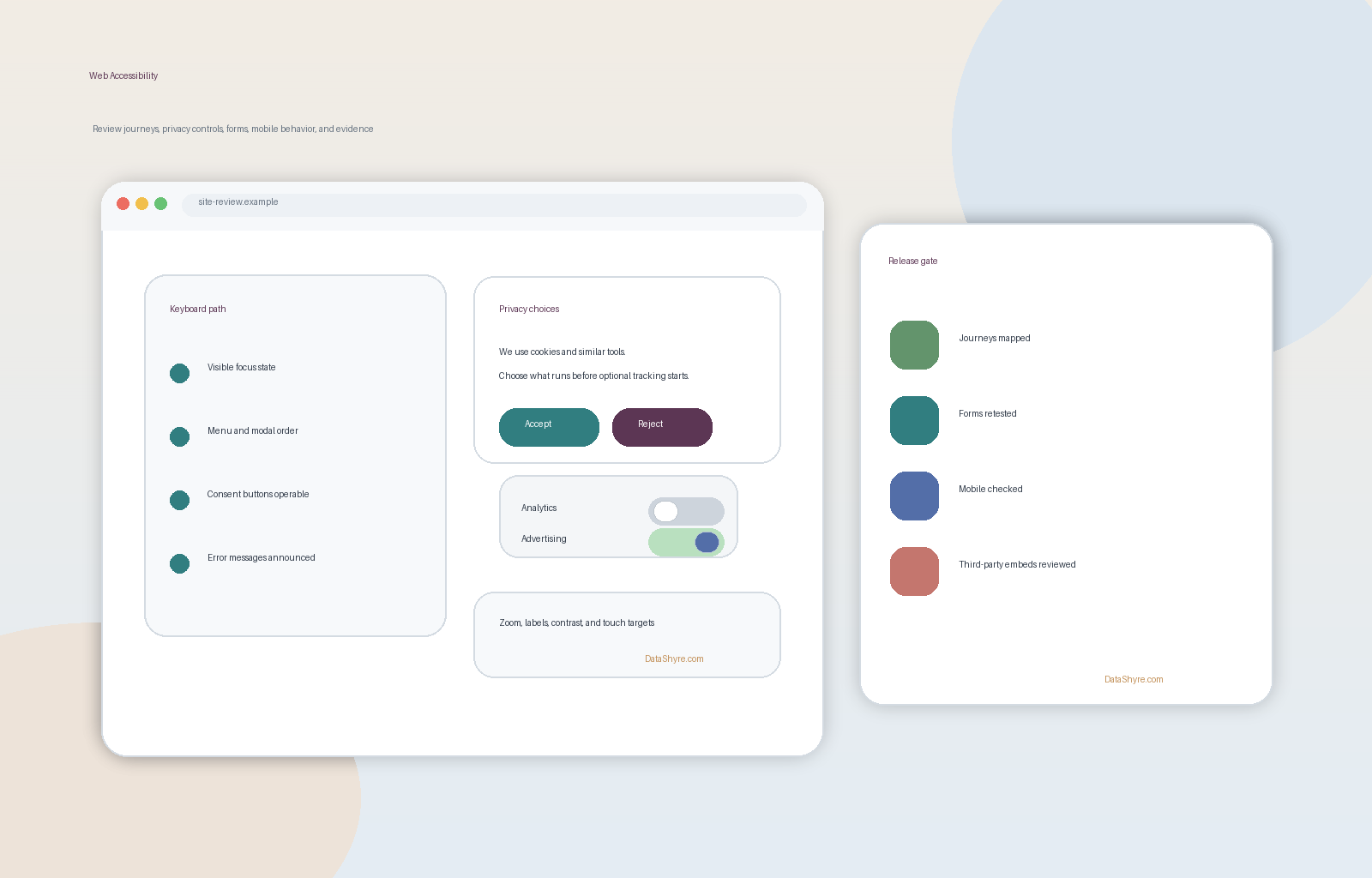
Why web accessibility belongs in the same review as consent and privacy UX
Many teams keep these topics in separate lanes.
That is usually a mistake.
The same site elements that create privacy and compliance risk often create accessibility risk too:
- cookie banners and preference centers;
- account creation and login flows;
- request forms for deletion, access, or correction;
- pricing tables, checkout screens, and support widgets;
- PDFs, videos, and embedded third-party tools.
So the practical web accessibility question is not only Does the homepage pass a scan? It is Can a person using assistive technology actually complete the important journeys this site asks them to complete?
1. Scope the journeys, not just the templates
The first web accessibility error is auditing one or two polished pages and assuming the rest of the product behaves the same way.
It rarely does.
Start with the journeys that actually matter:
- homepage and navigation;
- search or product discovery;
- signup, login, password reset, and account settings;
- checkout, contact, or lead forms;
- cookie banner, preference center, and privacy-request forms;
- help content, PDFs, downloads, and videos.
That is where inaccessible forms, broken focus order, missing labels, color-only cues, and weak mobile behavior usually surface first.
If I were triaging web accessibility risk quickly, I would rather review six real journeys than sixty screenshots.
2. Break the site with keyboard-only testing before you trust any score
Automated scans are useful, but they do not tell you whether the interface is truly operable.
ADA.gov’s guidance still points to common failures like inaccessible online forms and mouse-only navigation. In real deployments, keyboard testing is the fastest way to expose both.
For a useful web accessibility review, test whether a person can:
- open the menu;
- move through links and controls in a logical order;
- see where keyboard focus currently is;
- open and close modals without getting trapped;
- activate buttons, toggles, and disclosure panels without a mouse;
- return to the right place after closing an overlay.
This matters even more for privacy interfaces. A consent banner that looks fine visually but traps focus, hides Reject, or returns the user to the wrong place after closing settings is weaker than it appears.
3. Treat consent banners and privacy controls like accessibility components
This is one of the most common blind spots on compliance-heavy sites.
Teams often review the legal copy of the banner and the tracking behavior behind it, but not whether the interface itself is usable for people navigating by keyboard, screen reader, zoom, or touch.
For web accessibility, your privacy controls should be reviewed like any other critical component:
- each button should have a clear accessible name;
- toggles should expose state clearly;
- focus should move into the banner or modal in a predictable way;
- focus should return cleanly when the interface closes;
Accept,Reject, andManageactions should remain visible and operable on mobile;- color should not be the only way to distinguish choices.
If the privacy choice is mandatory before someone can use the page, the accessibility standard for that interface should be higher, not lower.
4. Fix forms, instructions, and errors before polishing the footer
ADA.gov still uses inaccessible forms as a core example for a reason.
Forms are where inaccessible websites stop being inconvenient and start becoming exclusionary.
For web accessibility, check whether forms provide:
- explicit labels that assistive technology can announce;
- instructions before the field, not only after failure;
- error messages that identify the problem clearly;
- error states that do not rely on red color alone;
- sensible tab order across grouped controls;
- enough time and enough clarity for confirmation steps.
This matters directly for compliance journeys. If a user cannot submit a contact form, correct a typo in a rights-request form, or finish account recovery, the business may have both accessibility and customer-support problems at the same time.
5. Test mobile reflow, zoom, contrast, and target size like a real user
A lot of web accessibility work fails quietly on smaller screens.
Desktop reviews miss:
- sticky headers covering content at high zoom;
- focus rings disappearing against mobile layouts;
- consent buttons wrapping into unreadable stacks;
- small touch targets inside cookie banners or account settings;
- horizontal scrolling introduced by tables, pills, or side panels.
This is one reason many teams choose to design and test against current WCAG 2.2 expectations even when a specific law or procurement rule points to an older version. The legal hook may vary by context, but the product risk is current.
For practical web accessibility review, force:
- narrow mobile widths;
- browser zoom and text zoom;
- portrait and landscape orientation;
- dark, bright, and glare-prone viewing conditions;
- real thumb-sized tapping on privacy and form controls.
6. Review documents, media, and third-party embeds as part of the same system
Many accessibility programs fail at the edges rather than at the homepage.
Section508.gov still describes websites as a collection of linked pages and related resources delivered through the browser. That is the right mindset for web accessibility generally: the page is not only the page template.
Your review should include:
- PDFs, downloadable guides, and policy documents;
- video captions and transcripts where appropriate;
- image alt text for diagrams, charts, and infographics;
- chat widgets, maps, booking tools, or support embeds;
- CAPTCHA or login challenges;
- third-party preference centers and consent tooling.
If the core template is accessible but the embedded scheduler, support bot, or privacy portal is not, the user still experiences an inaccessible site.
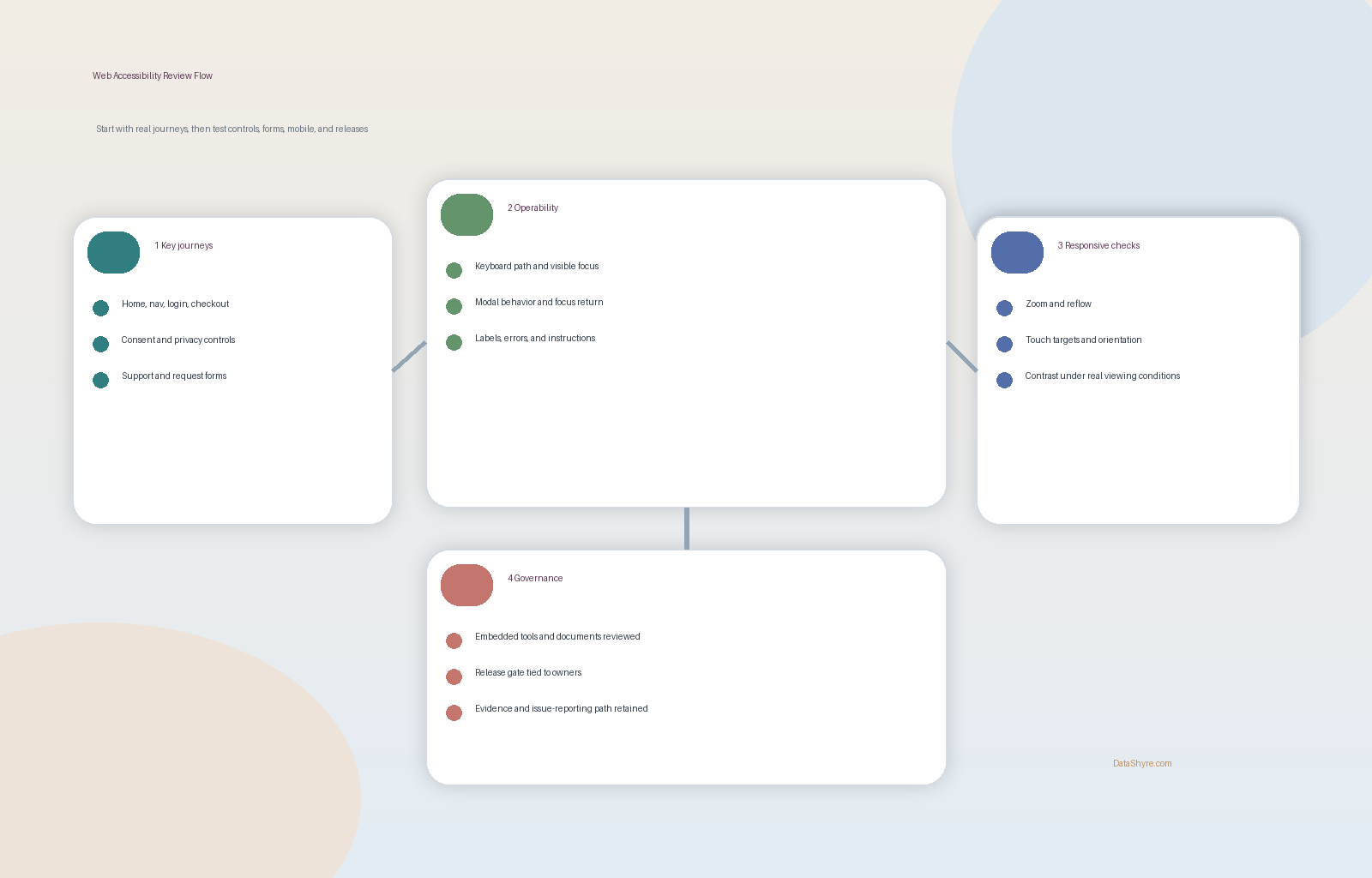
7. Turn web accessibility into release governance, not a one-time remediation sprint
This is where the strongest teams separate themselves.
W3C’s current WCAG materials show that the standards continue to evolve, and the DOJ’s current rulemaking history shows that legal obligations can shift by audience and entity type over time. So the durable answer for web accessibility is not a one-time pass. It is a release process.
That process should include:
- accessibility checks in design review;
- component-level acceptance criteria in engineering;
- regression testing before launches that affect navigation, forms, modals, or account flows;
- vendor review for embedded tools;
- an issue-reporting path users can actually find;
- a backlog that ties defects to owner and release date.
The most useful web accessibility programs are the ones that can explain what changed, what was re-tested, and what evidence shows the important journeys still work.
A practical way to prioritize web accessibility this week
If I had one week to improve web accessibility on a live site, I would use this order:
- identify the top five user journeys;
- test them keyboard-only on desktop and mobile;
- review every modal, banner, and form in those journeys;
- fix obvious label, focus, contrast, and error issues first;
- retest embedded third-party tools and documents;
- add the checks to the release process so the same failures do not come back next month.
That order is not glamorous, but it tends to find the highest-value failures quickly.
FAQ
Is WCAG 2.2 legally required everywhere?
No. The current legal hook depends on the context. The DOJ’s Title II rule for state and local governments uses WCAG 2.1 Level A and AA, while the DOJ’s broader ADA guidance for businesses says there is not one detailed technical regulation for business websites and points to WCAG and Section 508 as guidance. In real deployments, many teams still build and test toward current WCAG 2.2 patterns because that is the newer standard and a stronger operational target.
Do cookie banners and privacy forms belong in accessibility testing?
Yes. They are often some of the most interaction-heavy parts of the site. If a user cannot refuse tracking, manage preferences, or submit a privacy request because of focus, labeling, or mobile-layout failures, the problem is both accessibility and compliance-related.
Are automated scanners enough for web accessibility?
The fastest way to judge web accessibility is to test it the way a broken deployment would expose it: before consent, after consent, and again after a stack change.
Sources
- ADA.gov: Guidance on Web Accessibility and the ADA
- ADA.gov: Americans with Disabilities Act Title II Regulations
- ADA.gov: 2026 Interim Final Rule extending Title II web and mobile accessibility compliance dates (PDF)
- Section508.gov: Web Content Overview
- W3C: WCAG 2.2 publication history
Published: October 29, 2026. Updated using current official government and standards materials available at publication time.